Tidio Signup
How to create a Tidio account — signup process, what’s included, and first steps.
Creating a Tidio account — no credit card, under two minutes
Tidio’s signup process is one of the smoothest in its category. No sales call, no credit card, no lengthy forms. You can go from zero to a working chat widget in minutes.
How to sign up
- Go to tidio.com and click “Get Started Free”
- Enter your email, a password and your website address
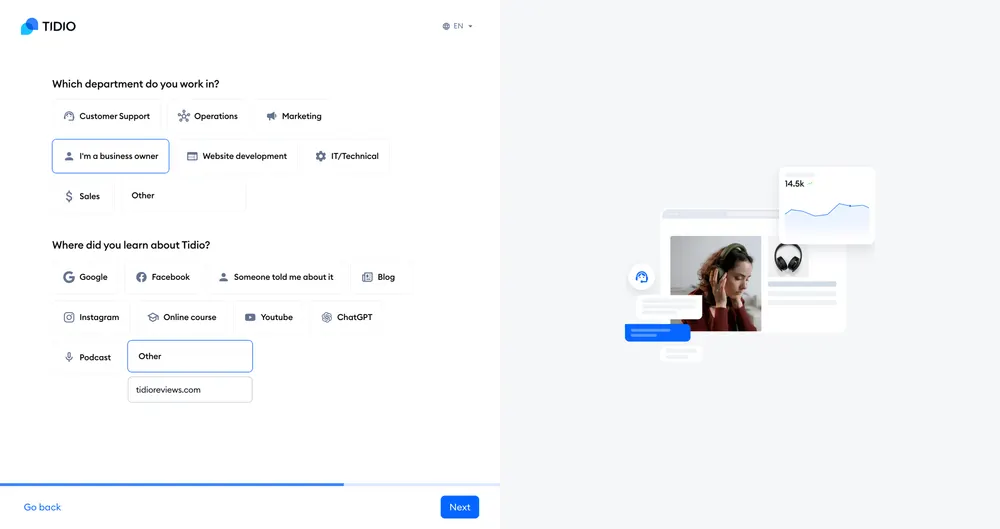
- Answer a few quick questions about your business (optional but helps Tidio customize your setup)
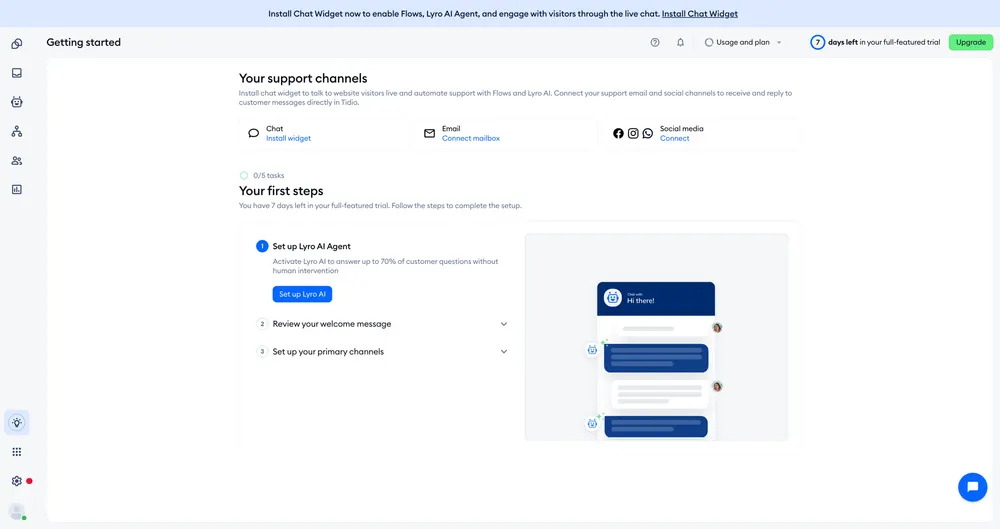
- Your account is created and you’re dropped into the dashboard
That’s it. The whole process takes under two minutes.
The signup flow, step by step
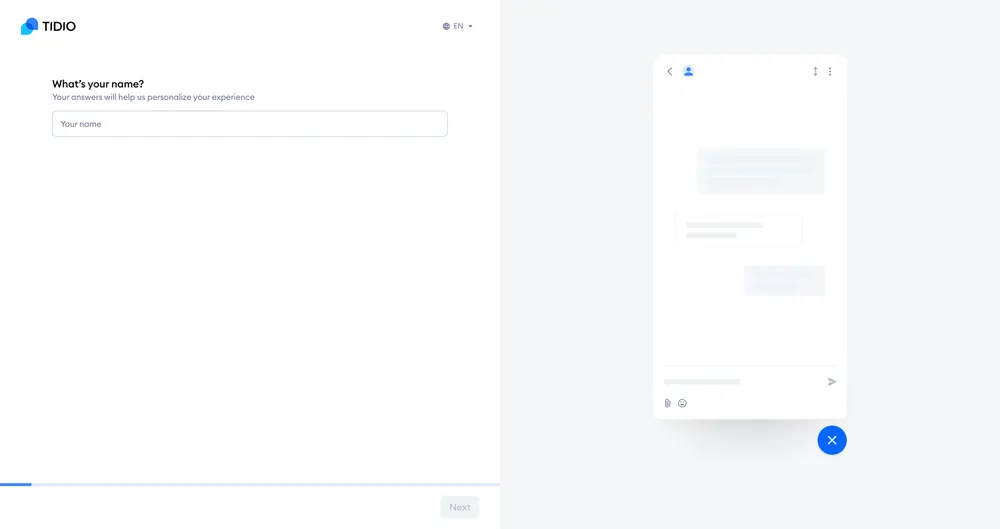
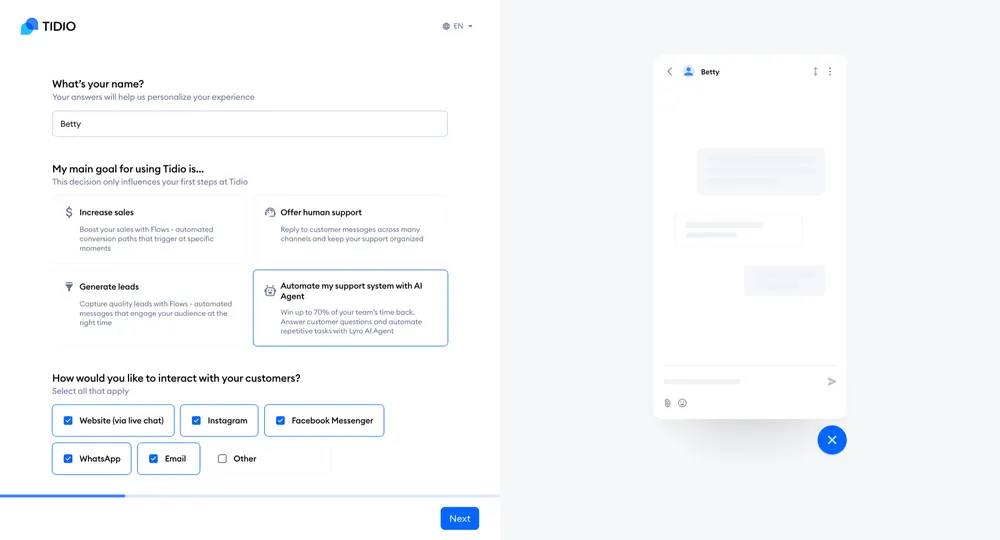
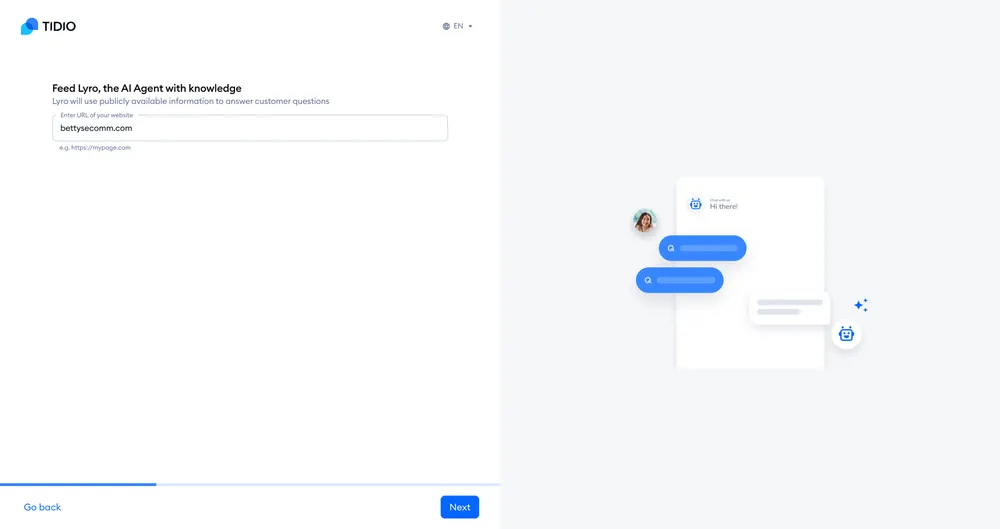
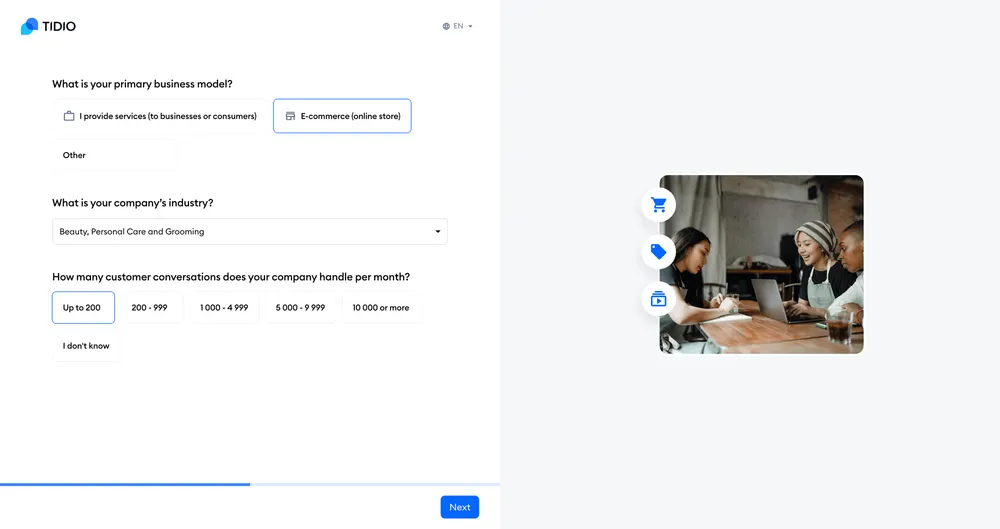
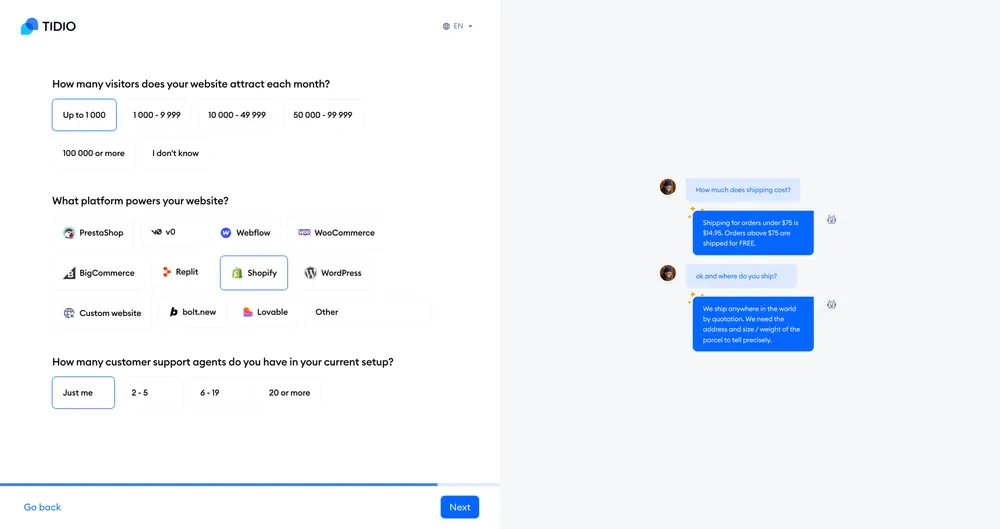
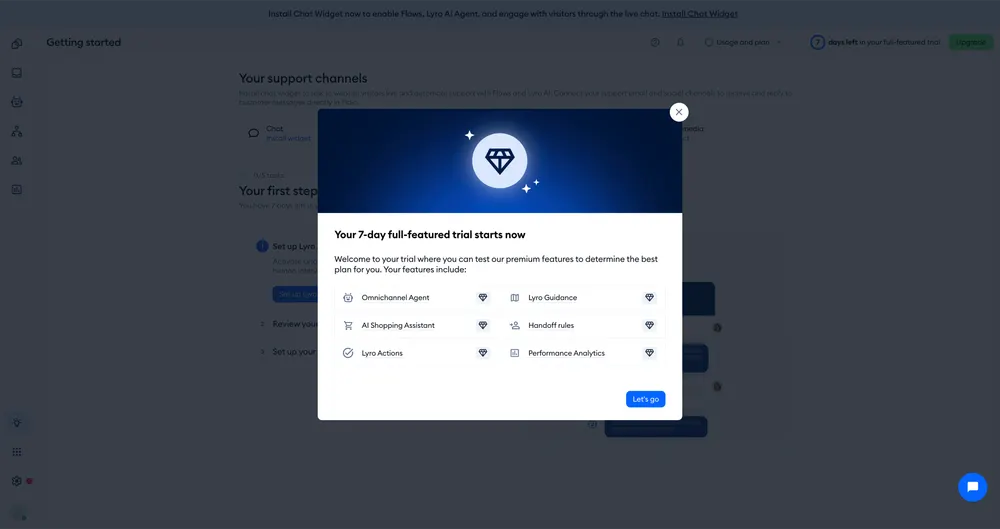
Here’s the actual onboarding sequence, captured screen by screen. Tidio front-loads a short questionnaire — name, goal, channels, and a few business details — then uses your website URL to prime the Lyro AI agent before dropping you into the dashboard. Scrub through the arcade below to see every step.


What happens after signup
When you create a new account, Tidio starts you with a 7-day free trial of paid features. After the trial ends, your account drops to the Free plan — you don’t get charged, and you don’t lose your data.
| Phase | Length | Includes |
|---|---|---|
| Free trial | 7 days | Premium features (Lyro AI, advanced Flows) |
| After trial | Ongoing | Free plan — 50 conversations/month, basic features |
| Upgrade (optional) | Anytime | Choose Starter, Growth, Plus, or Premium |
No credit card is required at signup. You can evaluate the platform without any payment commitment.
First steps after creating your account
1. Install the chat widget
Tidio provides a JavaScript snippet to add to your website. If you’re on Shopify, WordPress, Wix, or another supported platform, there’s a one-click integration instead. See Integrations for platform-specific guides.
2. Customize the widget appearance
Set your brand colors, position, welcome message, and operating hours in the widget settings.
3. Configure basic automation
The trial includes access to Flows (chatbot builder). Set up a welcome message flow and a basic FAQ responder to see how automation works.
4. Invite your team
Add operators from the team settings panel. Each team member gets their own login credentials.
5. Test with real traffic
Don’t overthink the setup. Install the widget, let real visitors interact with it, and iterate from there.
Plan selection
You don’t need to choose a plan at signup — the trial gives you access to evaluate everything. When you’re ready:
- Free plan — 50 conversations/month, basic live chat, limited Flows
- Starter — 100 conversations, operating hours, live visitors list, basic analytics
- Growth — advanced features, Macros, team permissions, advanced analytics
- Plus — API access, dedicated success manager
- Premium — highest limits, custom configuration, talk to sales
For a full breakdown, see Pricing.
Team invitations
- You can invite team members during or after signup
- Each invited member receives an email with a link to create their own login
- Operators can be assigned preset roles (Admin, Moderator, Agent) or custom permission sets
- The number of operator seats depends on your plan
Trial tips
Based on what I see in reviews, here’s how to get the most out of the 7-day trial:
- Install the widget on day one. Don’t spend the trial configuring — get real visitor data flowing.
- Test Lyro AI early. Upload your FAQ or knowledge base content and see how Lyro handles real questions.
- Try the mobile app. Download it and test push notifications. See Mobile App.
- Don’t worry about the clock. The free plan lets you keep using basic features indefinitely after the trial ends, so there’s no hard cutoff on evaluating the product.
Bottom line
Tidio makes it easy to start. Signup is fast, the trial is genuinely no-strings-attached, and the free plan means you don’t lose access if you decide to wait before upgrading. The biggest mistake I see in reviews is people signing up and not installing the widget right away — you need real traffic to evaluate the product properly.
Already have an account? See Login. Want to see the platform in action first? Check Demo.
Based on Tidio’s current signup flow and review feedback from G2 and Capterra.